Redvox Account#
This tutorial covers the various aspects of your RedVox account. Your RedVox account is required to search for and create reports. If you have issues accessing reports, you may need to sign in to your account first.
Creating Your Account#
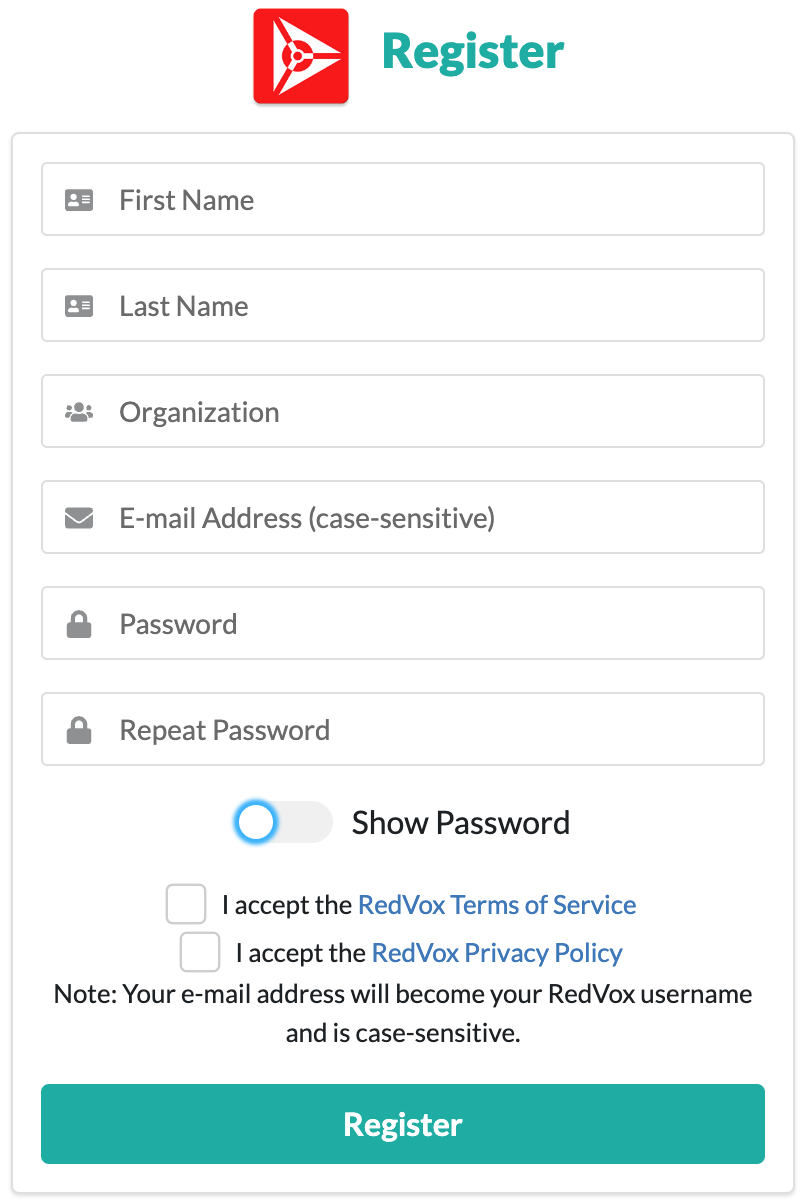
Enter the corresponding information into each field. Your email address will be used as the username when logging in, and the field is case-sensitive.
When entering your password, please ensure you have it memorized or stored it in a secure place. You may click the
Show Password toggle to check the password you have entered.
Read and accept the Terms of Service and the Privacy Policy,
then click the Register button to create your account.
If there are any errors, the page will inform you of them. Correct any errors, then attempt to register again.
Log Into Your Account#
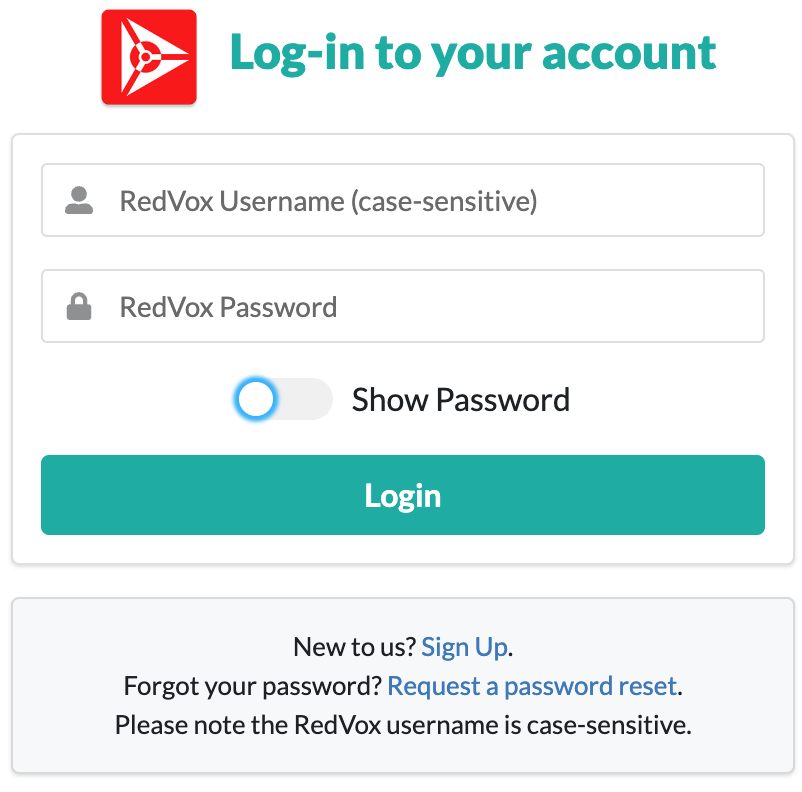
Enter the email associated with your RedVox account in the RedVox Username field, followed by the password of your
account in the RedVox Password field. You may click the Show Password toggle to show or hide your password. The
default is to hide your password.
To finish logging in, click the Login button. A successful log in will result in being returned to the previous page
with the upper right buttons now being Account and Sign Out.
Read more about the Account page here.
If there are any errors, the page will inform you of them. Correct any errors, then attempt to log in again.
Sign Out of Your Account#
Click the Sign Out button in the upper right.
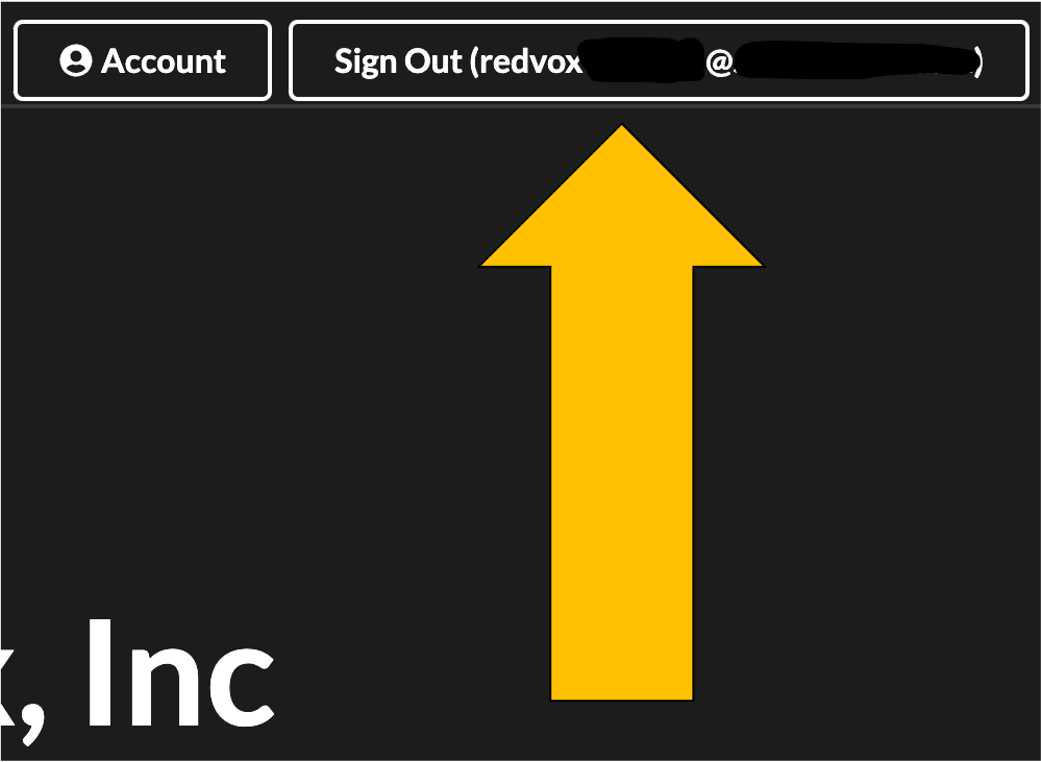
Please note that email addresses in our example screenshots will be partially censored for security purposes. Your screen will have the full email address associated with your account displayed.
Account#
This page has information about your account.
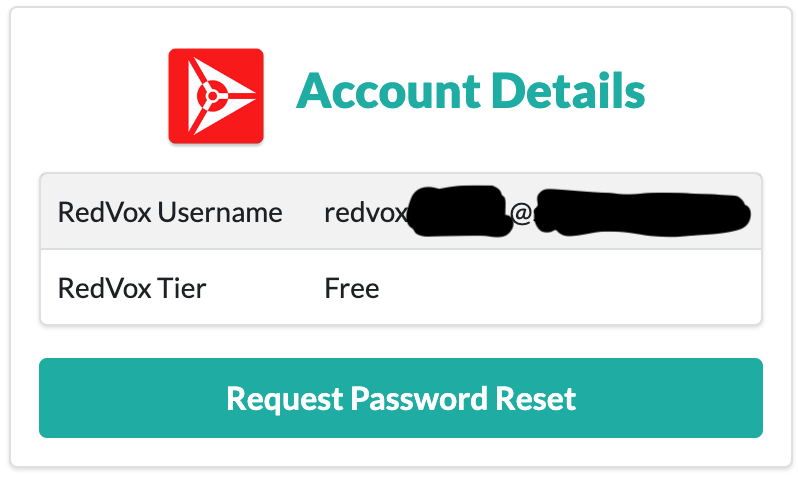
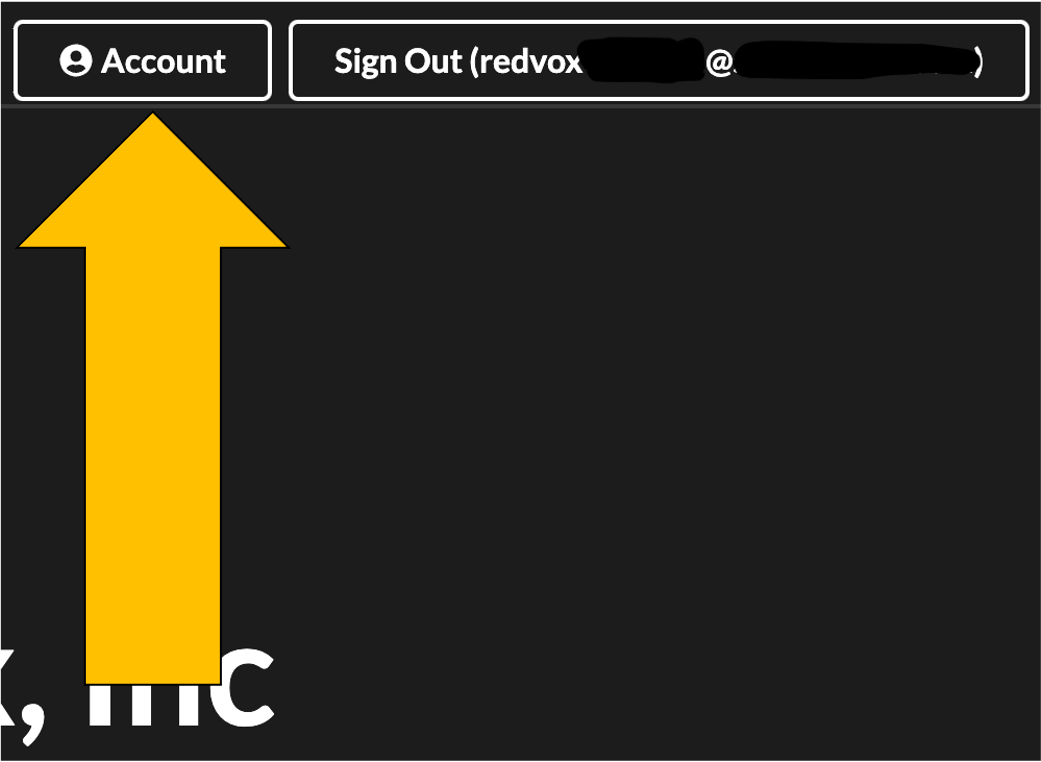
The account page can be accessed by clicking the Account button in the upper right.
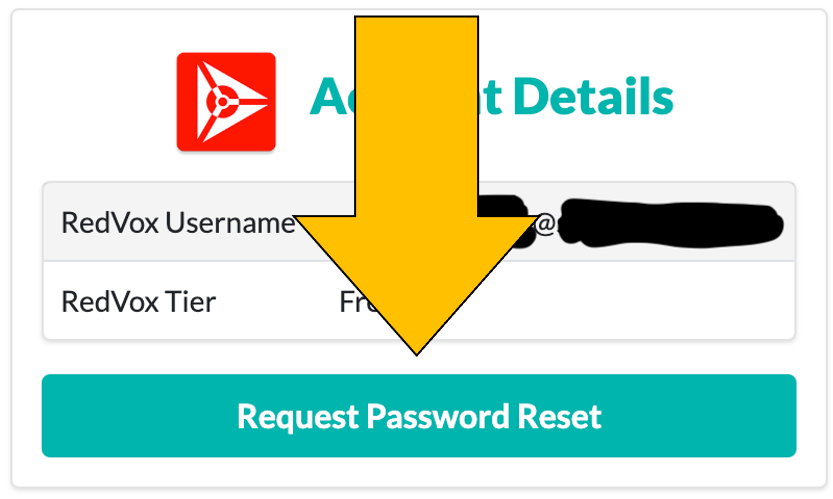
You can reset your password by clicking the Request Password Reset button.
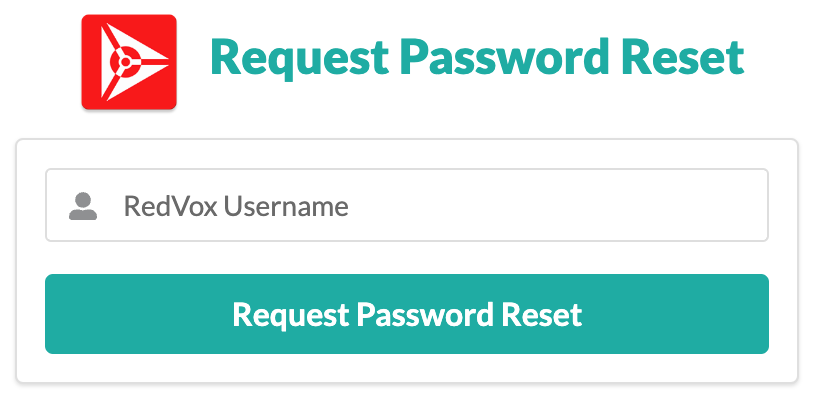
Re-enter your email address on the following page, then click the Request Password Reset button again. An email with
instructions will be sent to the email address you entered and the page will update with more information.
Troubleshooting#
For any issue not covered in this tutorial, contact RedVox support at support@redvox.io
for assistance.